Firmware Updater
Esu's Trifecta
Daisy Seed · WebUSB DFU · Chrome / Edge
How To Update
- Plug in your usb cable then immediately press BOOT — module enters Bootloader mode. If the boot LED is not flashing you missed the window, press and release RESET, then immediately press BOOT within the 3-seconds.
- Click Connect Device → select Daisy Bootloader from the browser dialog.
- Choose your channel and version, then click Flash Selected. Keep USB connected.
- Wait for the console to confirm completion, then power-cycle the module.
DFU via WebUSB
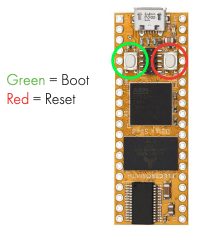
Connect Your Module
To enter Bootloader mode: Plugin your USB cable and immediately press boot. If done correctly the boot LED should constantly flash. If the boot LED is not flashing you missed the window, press and release RESET, then immediately press BOOT within the 3-seconds. Use Chrome or Edge on desktop over HTTPS.
Console Output
Flash diagnostics from this console are logged to help us support you if something goes wrong.
Firmware
Channel
Version
Release Notes
Or
Manual .bin file
Flash a local .bin file directly.
Troubleshooting
- Windows: Install WinUSB driver via Zadig if the device doesn't appear.
- Browser: Must use Chrome or Edge on desktop over HTTPS. Safari & Firefox are not supported.
- Cable: Use a direct USB port and a data-capable (not charge-only) cable.
- Stuck in DFU? Power-cycle the module and retry from step one.
Something Go Wrong When Flashing?
You may need to reflash the bootloader (then flash your firmware again) if:
- Your boot light isn't blinking the way it should.
- You can't get it to say Daisy Bootloader when connecting.
- You flashed and the module won't turn on now.